Hi everyone,
I’m interested in how people set up lighting in Sweet Home 3D to make room designs look more realistic.
Sometimes a room can look quite different in the 3D view compared with the final rendered image, especially when it comes to shadows, brightness and light coming through windows.
What settings or techniques do you usually adjust first to get a more natural result? Are there any common mistakes that can make a room look too dark or unnaturally bright?
I’d appreciate any tips from people who have worked on realistic interior renders.
Thanks
 Tips for Improving Lighting in Sweet Home 3D
This topic has been viewed 389 times and has 3 replies
-
cedricvale

- Posts: 12
- Joined: Wed Sep 23, 2026 9:54 am
- Country: United Kingdom
-
GaudiGalopin3324

- Posts: 749
- Joined: Sat Aug 13, 2022 9:58 am
- Country: Russia
Re: Tips for Improving Lighting in Sweet Home 3D
I will try to explain the principle of working with light using my kitchen project as an example. To begin with, you should be prepared for lengthy experiments, because the SH3D program does not provide a ready‑made template result; you need to make attempts and correct mistakes. The second thing you need to understand is that you won’t get a good result right away. There are no reliable recipes for setting the light. You’re in for pure creativity — get ready to become a painter, a sculptor, and an architect all at once, and make mistakes. Making mistakes is very useful for understanding the process. So, to start with, turn off the sunlight completely and set the time to 0:00.
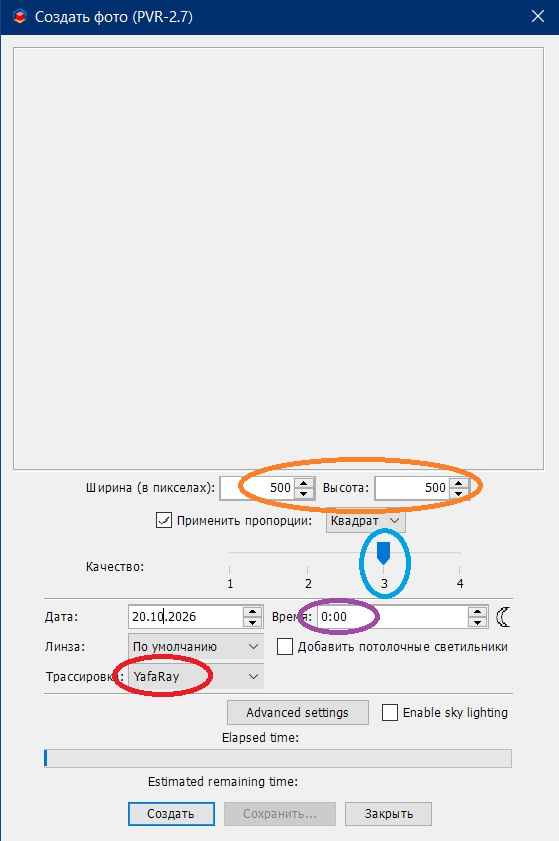
For experiments, also set a low resolution so that your test renders load quickly. No more than 500 pixels to start. I set the frame format to square, but you can use any other format. Third quality level; no need to experiment with the fourth level. I recommend using Yafaray. It works much better with lighting.
Now set the brightness level to position 2. If you set it to a high position, it will be difficult to maintain the image without strong backlighting. The first light fixture can be made as a large hemisphere within the dimensions of the room’s shape. I set the hemisphere dimensions first for the corridor: 455 cm x 145 cm and a height of 200 cm; in the corridor, the hemisphere is orange, and it extends 30 cm above the floor. The second hemisphere is exactly the same size for the kitchen, but the color is yellow. The power of such hemispheres is low — 3%. This is the main fill light in rooms, which does not produce directed beams and prevents very dark, unlit corners from forming. A single hemisphere light fixture is the simplest option; of course, it’s better to use several such fixtures, but the render time will increase many times over.
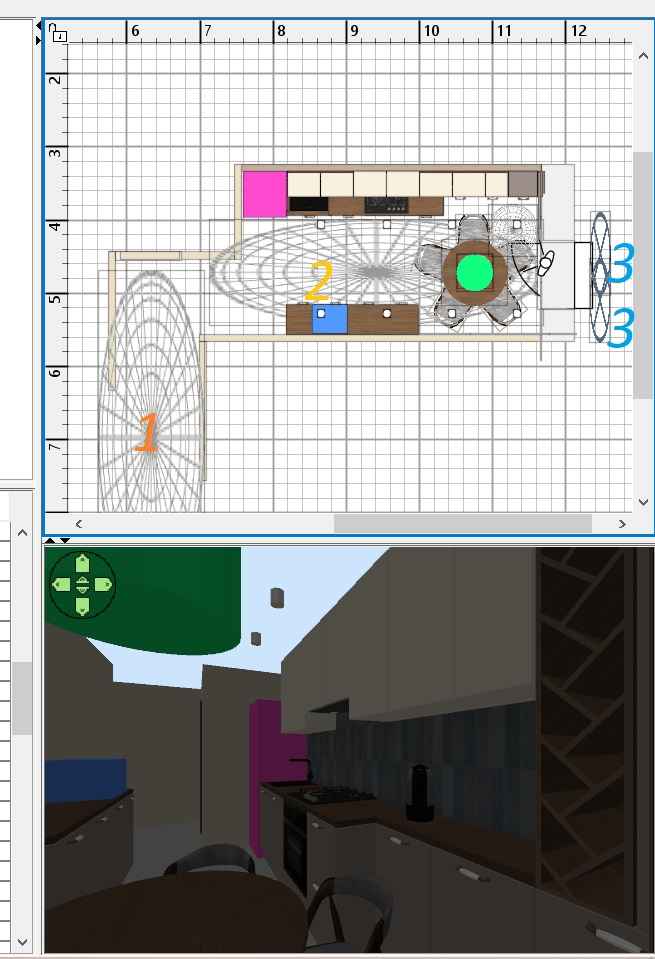
There are also two sphere‑shaped light fixtures, 28 cm × 114 cm and 30 cm high, which are stretched horizontally, cross each other, and simulate daylight coming from a window. The daylight spectrum is blue. The power of each blue sphere is 40 %, and the height above the floor level is 170 cm — this is slightly below the upper boundary of the window. This type of light mainly shines into the room and onto the floor, and illuminates the ceiling a little.
For the LED backlighting of the kitchen countertop, I used narrow, long white light panels; the power of these “diode strips” is 30%. They are positioned 5 mm below the level of the kitchen wall cabinets. And on the ceiling, I installed fixed ceiling spots from the SH3D library; the power of each spot is 50%, and the color is yellow.
Why is it important to make lamps of different colors? Because that’s how it is. The light in a room is warmer than outside, not the other way around. The farther you go from the window into the depth of the room, the more orange the color of the light rays becomes. The closer you get to the window, the colder the color of the spectrum. This combination creates a more realistic picture. Of course, you need to avoid overdoing it. But a more complex combination of colors will only improve the appearance. Now it’s time to start making trial renders in poor quality, lots of quick renders. Each time, try to improve the image by adding or reducing the power of the lights. The general rule is that there should be no heavily lit snow‑white surfaces; everything should be colored, not bright white. If this happens, it means the power is too high. If it’s possible to reduce the overall brightness level, give it a try, but a low brightness level increases the graininess of the image. Also, increased graininess occurs with very large spheres and hemispheres. This is a constant search for a compromise between the number and size of the light fixtures and the rendering time. At a render resolution of 500 pixels, this room with these light fixtures took 6–7 minutes to load. At 1,500 pixels, it took 50 minutes. I replaced the refrigerator model with a pink box of the required size. And instead of the chandelier above the table, I used a green cylinder of the required size. Because I don’t have 3D models of these items. I’ve already said many times that this isn’t a problem for the final render, at least not for me now. But first, here’s the result in SH3D:
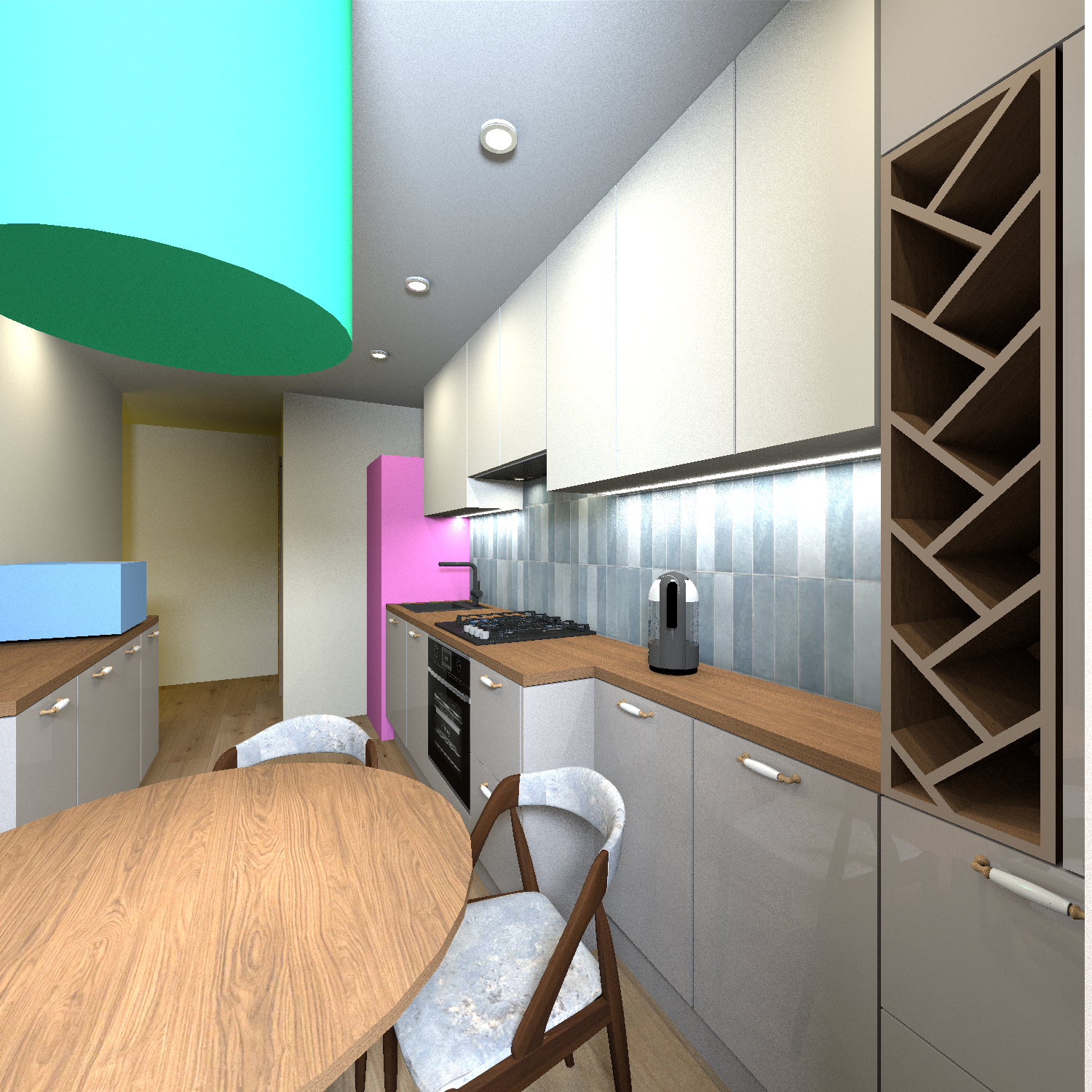
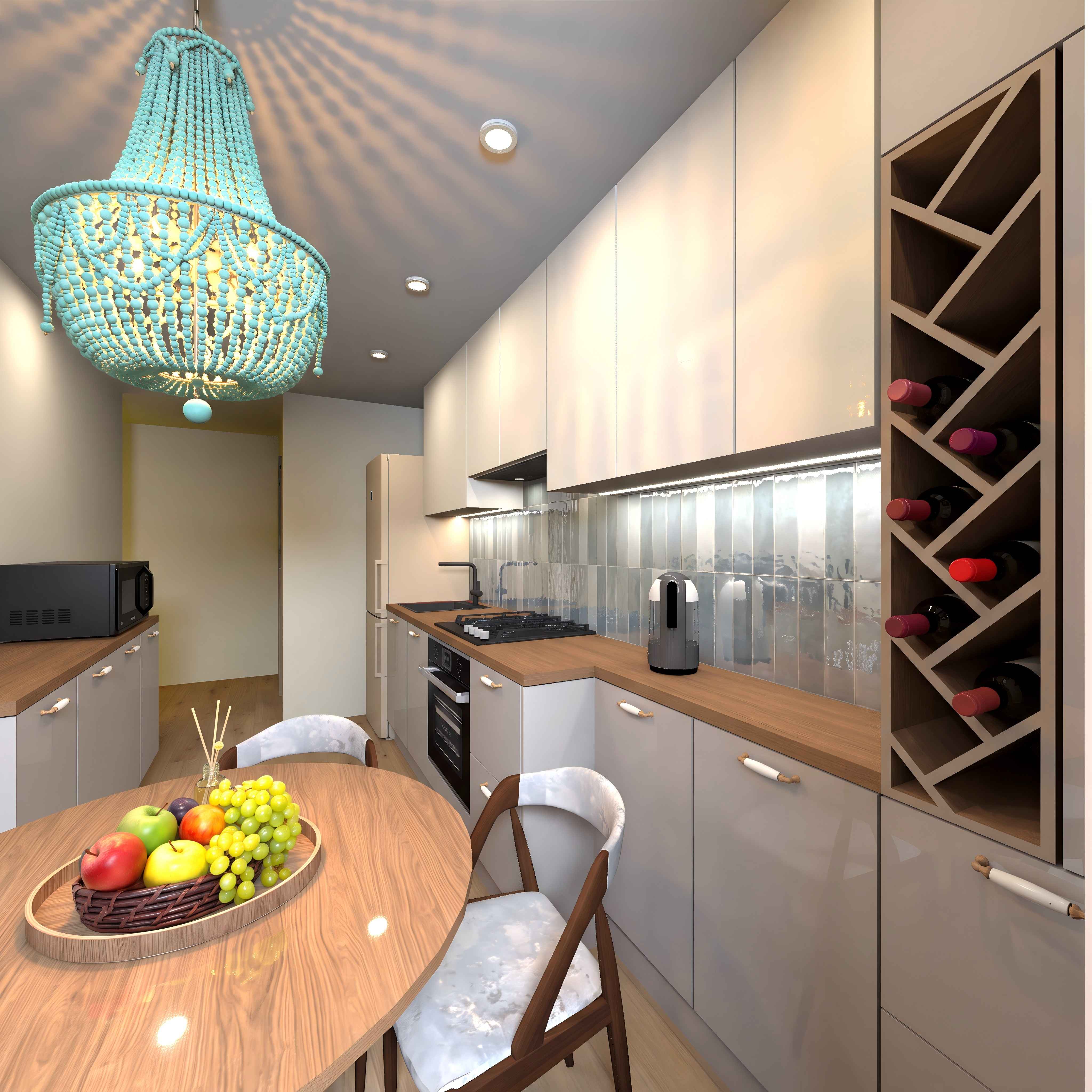
And, of course, this unfinished image can be edited in AI. Instead of pink and green shapes, you can show the required models of the refrigerator and chandelier; for this, you need photos of these items in the required color. It doesn’t have to be from the right angle — AI can handle it. Add a description of the absolutely impossible textures of glossy, curved, handmade tiles — there are no such 3D models, but there is AI. And as a result, you can get a very natural look for the room with the necessary items. Without using rare and complex 3D models. But I’ve probably already told you this a thousand times. The main thing is lighting. In the SH3D program, lighting is done in a complex way, but understanding how to do it is very useful for your growth. So, let me repeat: don’t try to do everything at once and in one attempt. Don’t try to immediately assign brighter lighting; do everything gradually. From dark to light. Create different light temperatures inside the room. Change the proportions of the light fixture powers relative to each other. Then the image will become as realistic as possible. If you understand the principle, AI won’t be able to hinder you))). It will only help.
 [:x]
[:x]
For experiments, also set a low resolution so that your test renders load quickly. No more than 500 pixels to start. I set the frame format to square, but you can use any other format. Third quality level; no need to experiment with the fourth level. I recommend using Yafaray. It works much better with lighting.
Now set the brightness level to position 2. If you set it to a high position, it will be difficult to maintain the image without strong backlighting. The first light fixture can be made as a large hemisphere within the dimensions of the room’s shape. I set the hemisphere dimensions first for the corridor: 455 cm x 145 cm and a height of 200 cm; in the corridor, the hemisphere is orange, and it extends 30 cm above the floor. The second hemisphere is exactly the same size for the kitchen, but the color is yellow. The power of such hemispheres is low — 3%. This is the main fill light in rooms, which does not produce directed beams and prevents very dark, unlit corners from forming. A single hemisphere light fixture is the simplest option; of course, it’s better to use several such fixtures, but the render time will increase many times over.
There are also two sphere‑shaped light fixtures, 28 cm × 114 cm and 30 cm high, which are stretched horizontally, cross each other, and simulate daylight coming from a window. The daylight spectrum is blue. The power of each blue sphere is 40 %, and the height above the floor level is 170 cm — this is slightly below the upper boundary of the window. This type of light mainly shines into the room and onto the floor, and illuminates the ceiling a little.
For the LED backlighting of the kitchen countertop, I used narrow, long white light panels; the power of these “diode strips” is 30%. They are positioned 5 mm below the level of the kitchen wall cabinets. And on the ceiling, I installed fixed ceiling spots from the SH3D library; the power of each spot is 50%, and the color is yellow.
Why is it important to make lamps of different colors? Because that’s how it is. The light in a room is warmer than outside, not the other way around. The farther you go from the window into the depth of the room, the more orange the color of the light rays becomes. The closer you get to the window, the colder the color of the spectrum. This combination creates a more realistic picture. Of course, you need to avoid overdoing it. But a more complex combination of colors will only improve the appearance. Now it’s time to start making trial renders in poor quality, lots of quick renders. Each time, try to improve the image by adding or reducing the power of the lights. The general rule is that there should be no heavily lit snow‑white surfaces; everything should be colored, not bright white. If this happens, it means the power is too high. If it’s possible to reduce the overall brightness level, give it a try, but a low brightness level increases the graininess of the image. Also, increased graininess occurs with very large spheres and hemispheres. This is a constant search for a compromise between the number and size of the light fixtures and the rendering time. At a render resolution of 500 pixels, this room with these light fixtures took 6–7 minutes to load. At 1,500 pixels, it took 50 minutes. I replaced the refrigerator model with a pink box of the required size. And instead of the chandelier above the table, I used a green cylinder of the required size. Because I don’t have 3D models of these items. I’ve already said many times that this isn’t a problem for the final render, at least not for me now. But first, here’s the result in SH3D:
And, of course, this unfinished image can be edited in AI. Instead of pink and green shapes, you can show the required models of the refrigerator and chandelier; for this, you need photos of these items in the required color. It doesn’t have to be from the right angle — AI can handle it. Add a description of the absolutely impossible textures of glossy, curved, handmade tiles — there are no such 3D models, but there is AI. And as a result, you can get a very natural look for the room with the necessary items. Without using rare and complex 3D models. But I’ve probably already told you this a thousand times. The main thing is lighting. In the SH3D program, lighting is done in a complex way, but understanding how to do it is very useful for your growth. So, let me repeat: don’t try to do everything at once and in one attempt. Don’t try to immediately assign brighter lighting; do everything gradually. From dark to light. Create different light temperatures inside the room. Change the proportions of the light fixture powers relative to each other. Then the image will become as realistic as possible. If you understand the principle, AI won’t be able to hinder you))). It will only help.
[:x]-
GaudiGalopin3324
- Posts: 749
- Joined: Sat Aug 13, 2022 9:58 am
- Country: Russia
-
cedricvale
- Posts: 12
- Joined: Wed Sep 23, 2026 9:54 am
- Country: United Kingdom
Re: Tips for Improving Lighting in Sweet Home 3D
Thanks for taking the time to explain all this and share the images. The kitchen example makes it much easier to understand how you are setting up the different lights and adjusting them. there is a lot to experiment with here, really appreciate you sharing your process.
Who is online
Users browsing this forum: No registered users